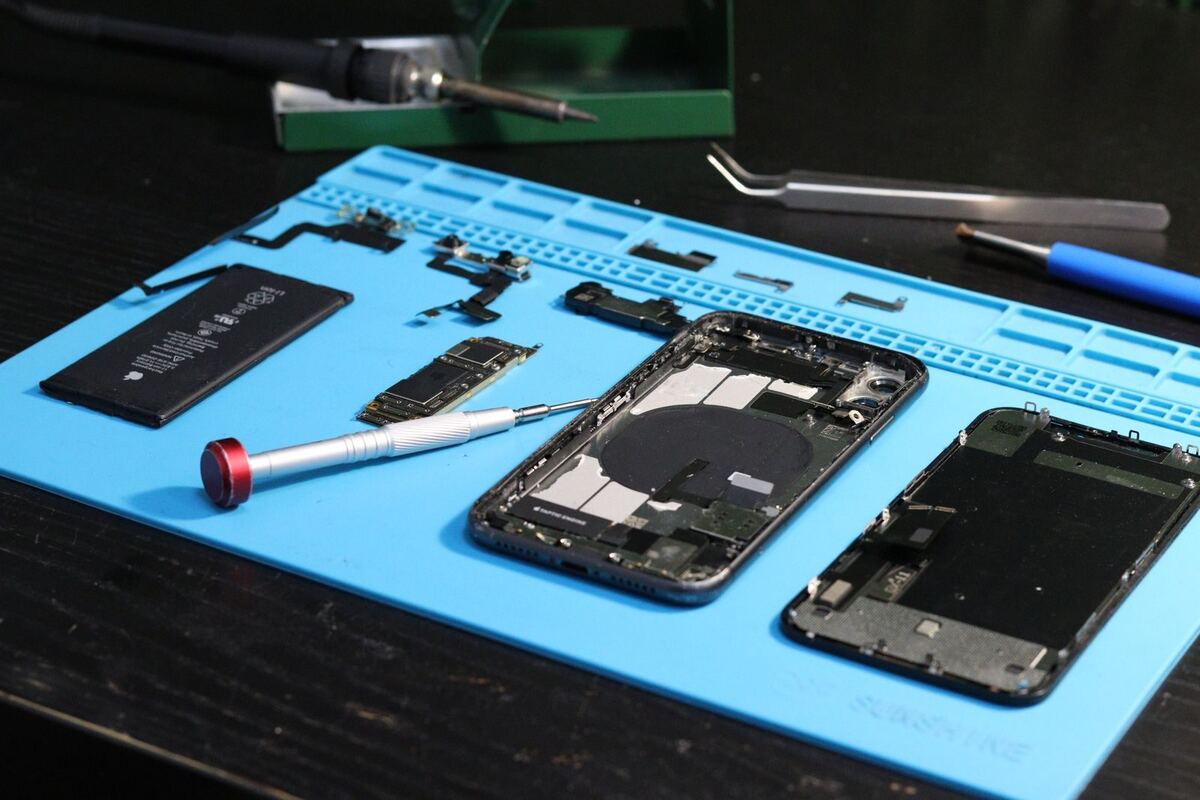
Opened iPhone with tools on the repair mat — iPhone repair Düsseldorf
iPhone won't start

iPhone won't turn on: what you can check yourself

An iPhone that won't turn on is a shock at first. In many cases, though, the device isn't dead at all: the battery is just empty or the screen is dark. With a few steps in the right order, you can find out what's wrong, and above all you won't put your photos at risk while doing it.

Published Topic Repair

iPhone won't turn on: what you can check yourself

First: charge it, and do it properly

A completely flat battery is the most harmless cause and also one of the most common. When a battery is very deeply discharged, the iPhone shows nothing at all for the first few minutes on the cable, not even the battery icon.

So plug the device into a charger in a wall socket, not into a laptop or a power bank, and leave it alone for half an hour. Use a cable that you know charges another device. A kinked or cheap cable is the cause more often than you'd think.

If the red battery icon or the Apple logo appears after a while, it was the battery. If this happens to you often, or the device simply switches off while it still has charge left, the battery is worn out. There's more on this in the article on battery replacement.

Then: the force restart

Sometimes the system freezes so badly that the screen stays black even though the device is running. A force restart doesn't delete any data, it just switches the iPhone off hard and back on again. The buttons depend on the model.

  • iPhone 8, iPhone SE from the second generation and all newer models: briefly press volume up, briefly press volume down, then hold the side button until the Apple logo appears
  • iPhone 7: hold volume down and the side button together until the Apple logo appears
  • iPhone 6s and older, and the first-generation iPhone SE: hold the Home button and the side button together

Is the device running, and only the picture is missing?

This is the most important question, and you can answer it without any tools. Call the iPhone from another phone. If it rings or vibrates, the device is on and only the screen is dark. The same applies if Siri answers or the device vibrates briefly when you plug in the cable.

A second test uses a computer. Connect the iPhone to a Mac or to a PC with iTunes. If it shows up there, it's alive. In that case it's very likely the display or its connector, and your data is safe on the device.

This distinction saves you a lot of worry. A dark display after a drop is a normal display repair, and we don't touch the storage.

Recovery mode: always Update first, never Restore straight away

If the iPhone is stuck on the Apple logo or shows a cable with a computer icon, the computer offers you two buttons. This is where most avoidable data loss happens, so look closely.

“Update” reinstalls iOS and leaves your data where it is. Always try this first. “Restore”, on the other hand, resets the device to factory settings and deletes everything that isn't in a backup.

If you don't have a recent backup and updating doesn't work, stop at this point. A device that won't start can often still be brought back to life in the workshop just enough to get the data off it. After a restore, that's no longer possible.

When you'd better stop trying

There are cases where every further attempt to charge does more harm than good. If you see any of the following signs, leave the device switched off and bring it in.

  • The iPhone gets warm on the cable even though the screen stays black
  • The device got wet beforehand, even just briefly
  • The display is lifting at one edge or the back is bulging
  • It smells burnt or of chemicals

What we do when you bring it in

We connect the device to a tester and see whether it draws power and how much. That tells us whether the battery, the charging port, the display or the logic board is the problem, before anything is opened.

We'll look at your device for free and give you a cost estimate. Then you can decide in your own time whether we repair it. If your photos and chats are what matter most, tell us right when you hand it in. Then data recovery comes first and the repair second.

Frequently asked questions

Quick answers

Do I lose data with a force restart?

No. A force restart just switches the iPhone off hard and back on again. Nothing is deleted and nothing is reset.

My iPhone vibrates, but the screen stays black. What's broken?

Almost always the display or its connection to the logic board. The device itself is running and your data is still there. After a drop, this is a normal display repair.

Can I save my photos if the iPhone won't start at all?

Often yes, as long as nobody has restored the device beforehand. Bring it in before you click “Restore” on the computer. We'll tell you after the diagnosis what's possible.

How long does the repair take if it's the battery or the display?

Most repairs take 20 to 60 minutes. How long it takes for your device, we'll tell you after the diagnosis.

Your question isn't here? Call us on 0211 26134549 or send us a repair request.

Request

Get your device checked now

Tell us which device it is and what is wrong with it. We get back to you with the price and how long it takes.

  • No obligation: a request is not an order
  • Free diagnosis and quote
  • A phone number or email is all we need
Prefer to call?0211 26134549
Request a repairStep 1 of 5

What brand is your device?

Four short questions. Then we get back to you with the price and how long it takes.

Have your device looked at now

Tell us what's not working, and we'll have the right part ready. We look at your device for free and give you a quote. Then you decide in your own time whether we repair it.

4.8 out of 5742 reviews on Google
WhatsApp